

The QA (Supervisor) Dashboard provides near real-time insights into audit performance, agent quality trends, coaching activity, and fatal interactions. It offers a unified view of quality, sentiment, resolution, and L3-level analysis to identify performance gaps, compare Auto QA and manual scores, and track adherence. Supervisors use it to monitor quality metrics, compare inbound and outbound performance, identify coaching opportunities, and—when agent disputes are enabled—track pending reviews and active disputes through filter-driven analysis. Access depends on user roles: App Owner, App Developer, App Tester, and Supervisors with Cross Queue Data Access can view all queues, while others are limited to assigned queues. The dashboard supports global filters for language, date range, channel, and contact direction, with all widgets updating dynamically and defaulting to the last 7 days.Documentation Index
Fetch the complete documentation index at: https://koreai-v2-agent-platform-dev.mintlify.app/llms.txt
Use this file to discover all available pages before exploring further.
Key features
| Feature | Description |
|---|---|
| Cross-queue Analytics | View agent performance across all queues without assignment restrictions. |
| Direction-aware Analysis | Analyze performance separately for inbound, outbound, or combined interactions. |
| Adherence Heatmap | Monitor adherence trends, fatal interactions, and evaluation performance based on selected filters. |
| Agent Leaderboard | Identifies top and bottom performers using direction-based segmentation for targeted coaching, based on audits completed, audit scores, evaluation scores, and failure rates. |
| Evaluation Score Trends | Track Auto QA and manual audit score trends across daily, weekly, and monthly views. |
| Performance Monitor | Analyze agent performance using evaluation forms and score distributions, including positive and negative weights. |
| Flagged Interactions Visibility | Displays across the QA Dashboard, Audit Screen, and Conversation Mining for targeted coaching and quality control. |
When to Use This Dashboard
Use the Supervisor Dashboard to:- Monitor overall quality performance.
- Compare inbound vs outbound trends.
- Identify fatal and failed interactions.
- Track audit progress and coaching workload.
Access Supervisor Dashboard
Navigate to Quality AI > Analyze > Dashboard.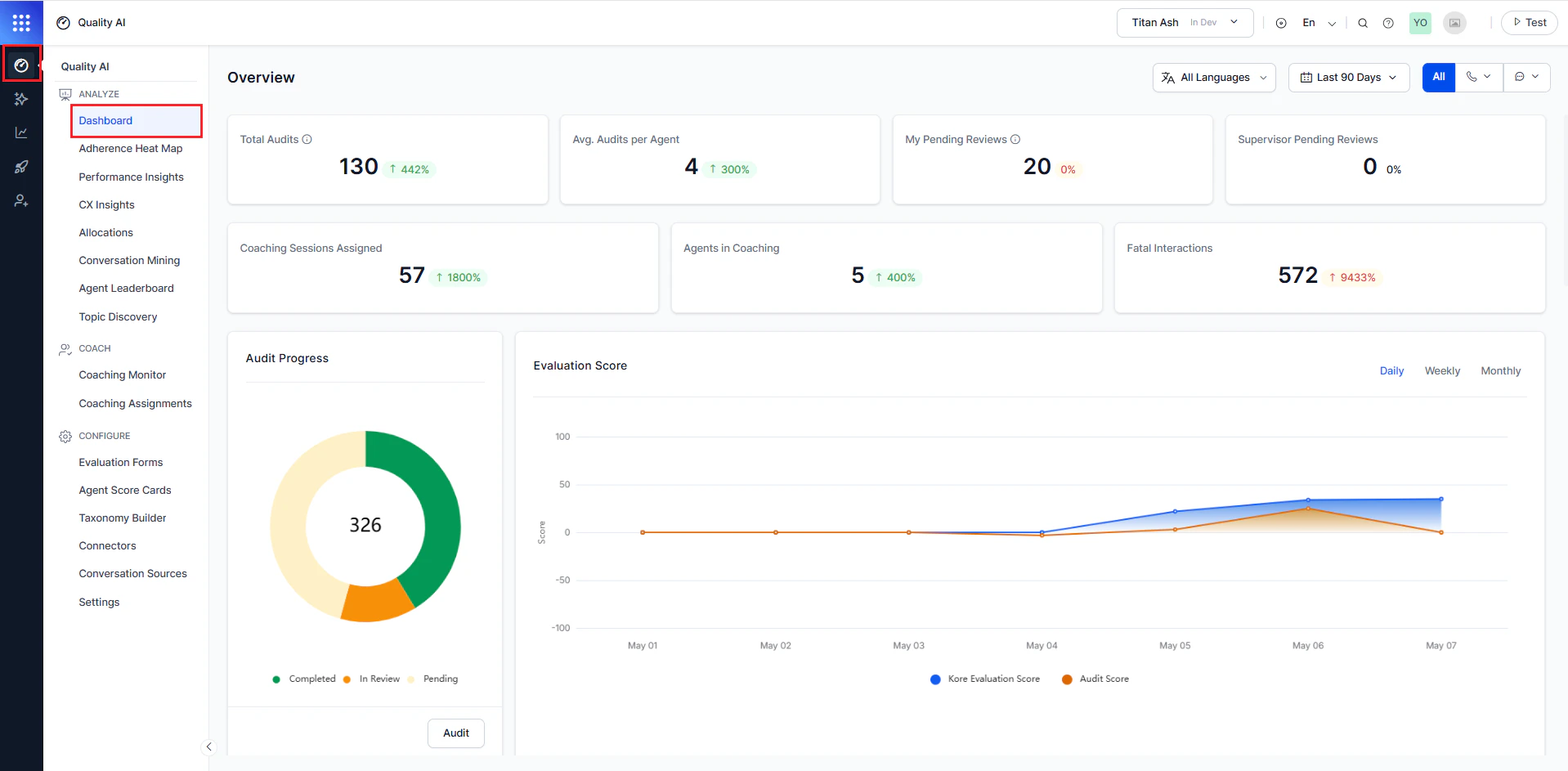
Enable the required settings in Quality AI General Settings and assign the appropriate permissions to access features such as Agent Scorecard, Auto QA, Evaluation Forms, Adherence Heatmap, Performance Monitor, and Agent Leaderboard.
Dashboard Filters
The dashboard uses shared filters across all widgets, consistent with the Agent Dashboard and Audit views, allowing users to refine data by language, date range, channel, and contact direction.All widgets update dynamically based on selected filters. Default: All Languages, Last 7 Days, All Channels, Both Directions.
All Languages
You can search and filter by language (more than one) and apply language-specific metrics. These metrics are available based on configuration under Configuration > Settings > Language Settings. To filter by language:- Select the All Languages filter at the top of the dashboard.
- Select one or more languages from the dropdown.
- Metrics update automatically to show language-specific data.
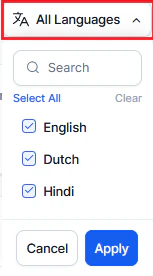
By default, all languages are selected. Metrics are shown only for configured languages under Settings > Language Settings.
Date Range
Use the Calendar to filter data by date range.- Select the Calendar dropdown.
- Select a date range.
- Select Apply.
Channel and Contact Direction
Use the filters in the top-right toolbar to refine dashboard data. Channel controls the communication type (Voice, Chat, All), and Contact Direction controls interaction flow (Inbound, Outbound, Both). Both filters apply globally across all widgets, including Total Audits, Avg. Audits per Agent, Fatal Interactions, Evaluation Score, Adherence Heatmap, Performance Monitor, and Agent Leaderboard. By default, All is selected for Channel and Both for Contact Direction, showing combined metrics across channels and interaction flows. These filters work together to enable detailed analysis of interaction patterns, such as Voice + Inbound, Voice + Outbound, Chat + Inbound, Chat + Outbound, and All + Both. The dashboard updates all trends, graphs, and metrics based on the selected filters and supports daily, weekly, and monthly views along with distribution analysis. To filter data:- Select All Channels in the top-right corner.
- Choose Voice, Chat, or All.
- Use the direction selector to choose Inbound, Outbound, or Both.
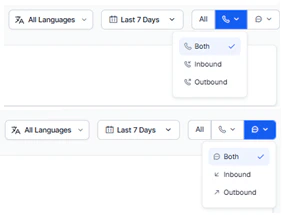
All widgets update dynamically based on selected filters. Default: All Languages, Last 7 Days, All Channels, and Both Directions.
Agent Performance Metrics
Provides a high-level summary of audit activity, coaching workload, and quality performance.Total Audits
Number of completed manual audits.
Avg. Audits per Agent
Average number of manual audits completed by each agent in their assigned queues.
Coaching Sessions Assigned
Total coaching sessions assigned to agents by supervisors.
Agents in Coaching
Number of agents with an active coaching assignment in queues accessible to the supervisor.
Fatal Interactions
Number of interactions that failed due to critical errors. If an interaction meets any fatal criteria in the evaluation form, the entire scorecard scores zero.
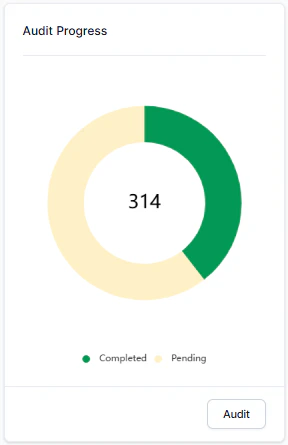
Audit Progress
Tracks overall audit progress (completed and pending).| Status | Description |
|---|---|
| Completed | Number of assigned interactions audited. |
| Pending | Number of assigned interactions not audited. |
Evaluation Score
Displays the trend of the average Kore Evaluation Score (Auto QA) and average Audit Score (manual) over daily, weekly, or monthly intervals.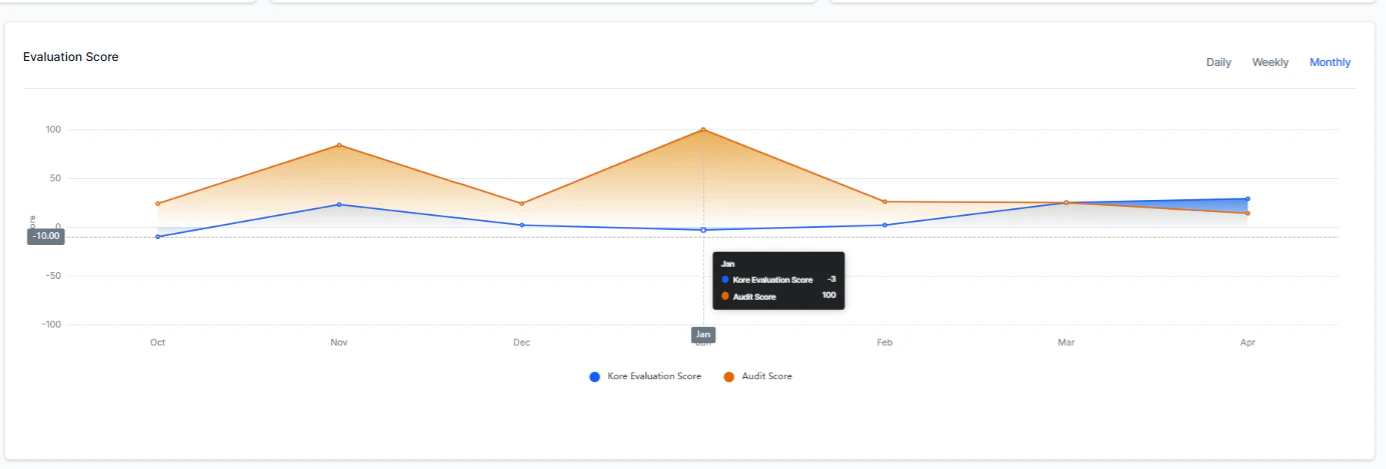
Adherence Heatmap
Displays a 7-day adherence snapshot based on a default evaluation form, highlighting trends and flagged or fatal interactions. Use Mark as Default to apply an evaluation form across both the heatmap and QA Dashboard for consistent tracking. Filter adherence data by language and form, including flagged and fatal interactions.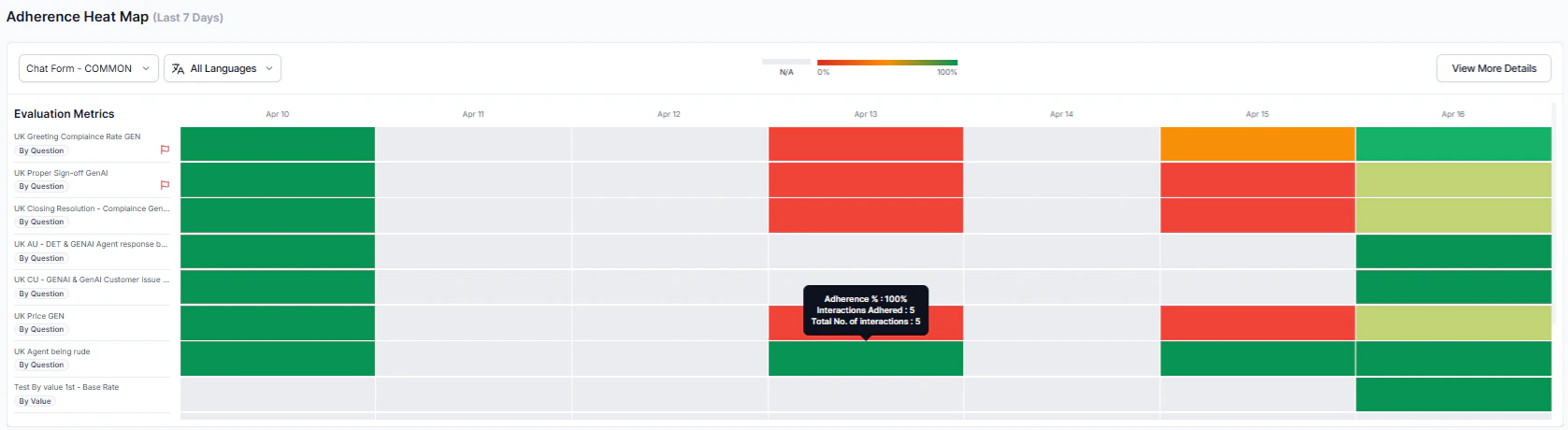
| Option | Description |
|---|---|
| Evaluation Form | Choose a form to set as Default; related data including fatal interactions appear on the heatmap and QA Dashboard. |
| Language Filter | Use the All Languages dropdown to filter by language; refine adherence data by language. |
| Tooltip Insights | Hover over the heatmap to view adherence percentage, interaction count, and total interactions for the selected agents and date. |
Fail Statistics
Highlights failed and negatively scored interactions to identify quality gaps. Use Fail Statistics to:- Track failed interaction percentages by evaluation form, agent scorecard, date range, and language.
- Analyze fatal interaction percentages in daily, weekly, or monthly format.
- Visualize failure rates through interactive charts.
Evaluation Form
Shows failure rates across selected evaluation forms, highlighting negative scores for critical metrics. Hover over the chart to see detailed failure rates and negatively weighted scores per metric. The system assigns negative weights to critical metrics in evaluation forms, attributes, or scorecards, producing negative final scores for interactions that fail key criteria. These scores appear across relevant modules.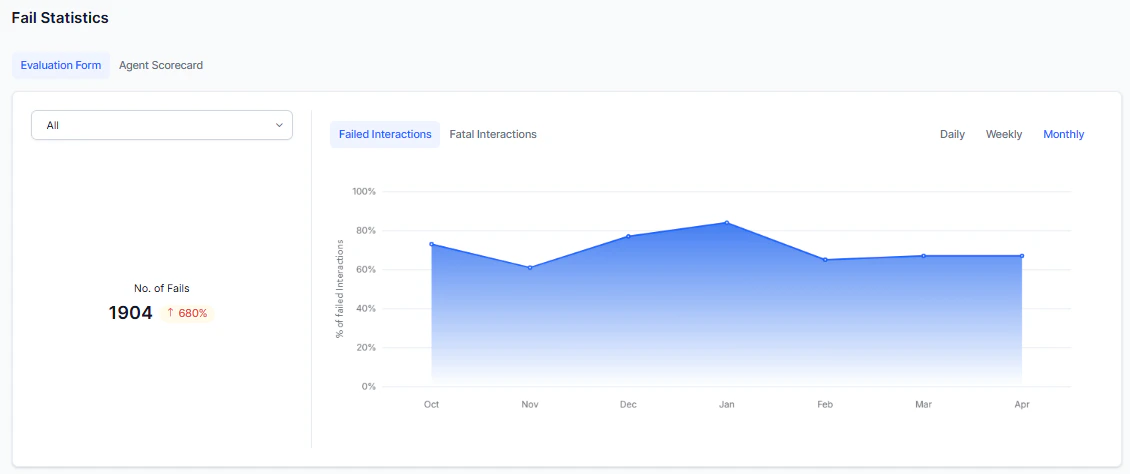
Agent Scorecard
The chart shows the trend of failed agent interactions as a percentage based on selected scorecard metrics. If any selected metric is marked as fatal, the entire interaction receives a zero score on hover. Fatal interactions are automatically flagged and surfaced across system modules for visibility and action.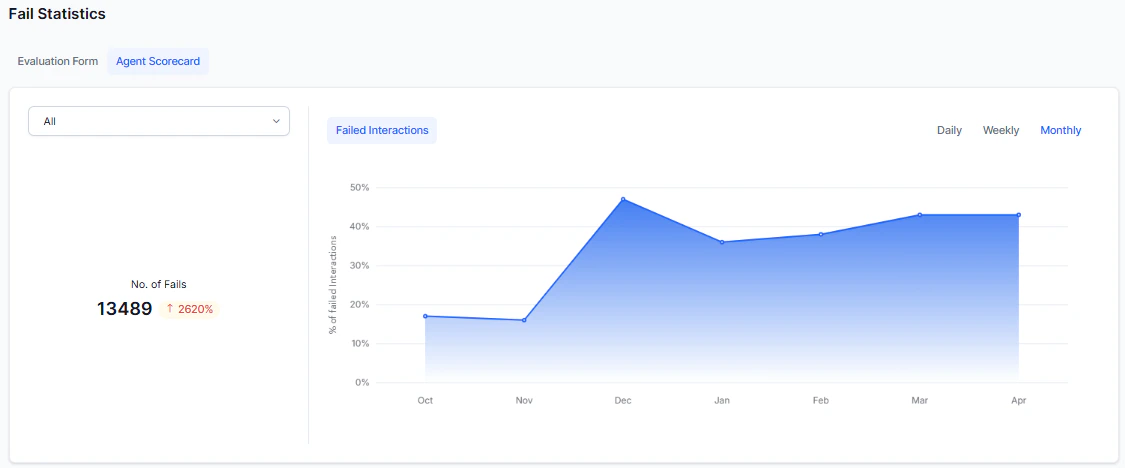
Performance Monitor
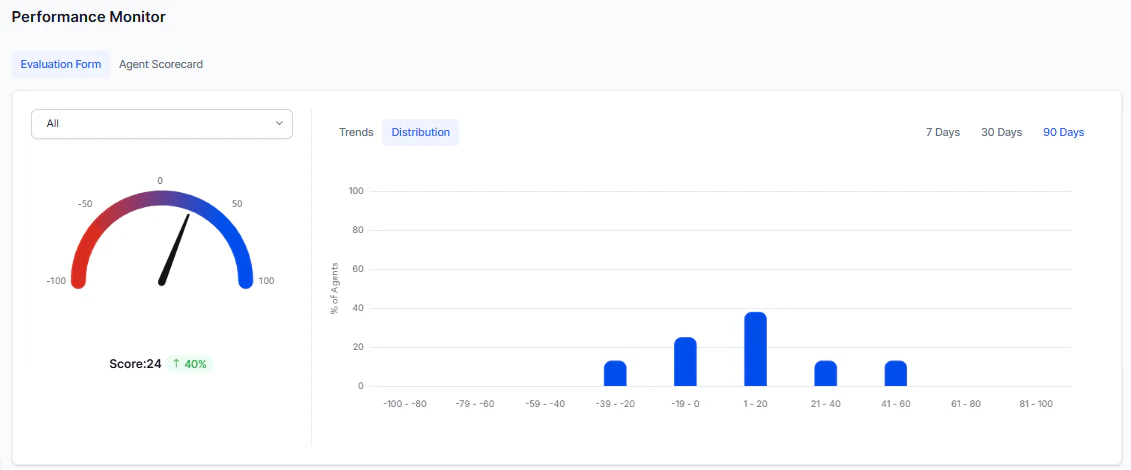
Displays performance scores based on selected filters and shows score distribution across agents.Evaluation Form
Supervisors monitor agent performance using the selected evaluation form with configured negative weights. The Performance Monitor shows trends by interaction direction, enabling separate analysis of inbound and outbound performance.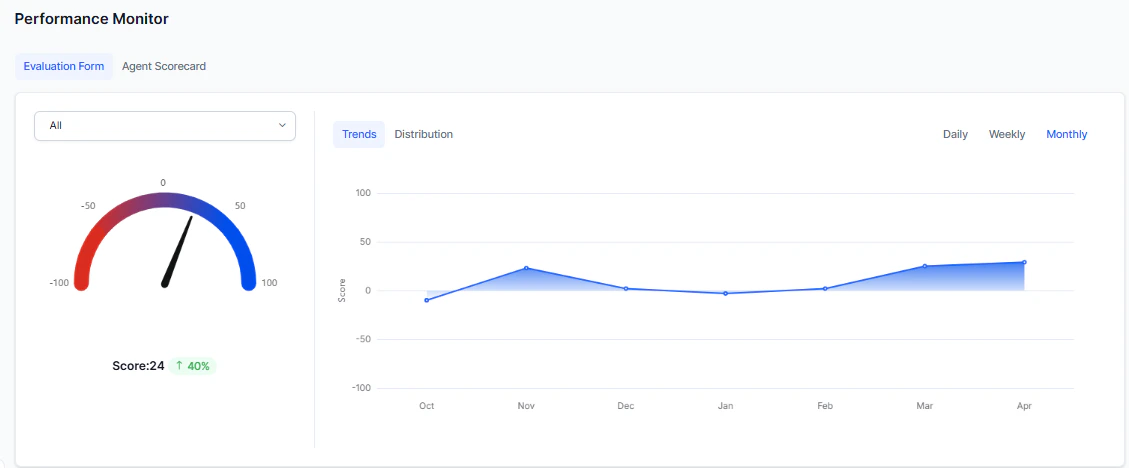
| View | Description |
|---|---|
| Trends | Shows average evaluation scores (positive and negative) over daily, weekly, and monthly periods. |
| Distribution | Displays agent score distribution across defined ranges (for example, 0–10, 11–20) over 7, 30, or 90 days. |
Agent Scorecard
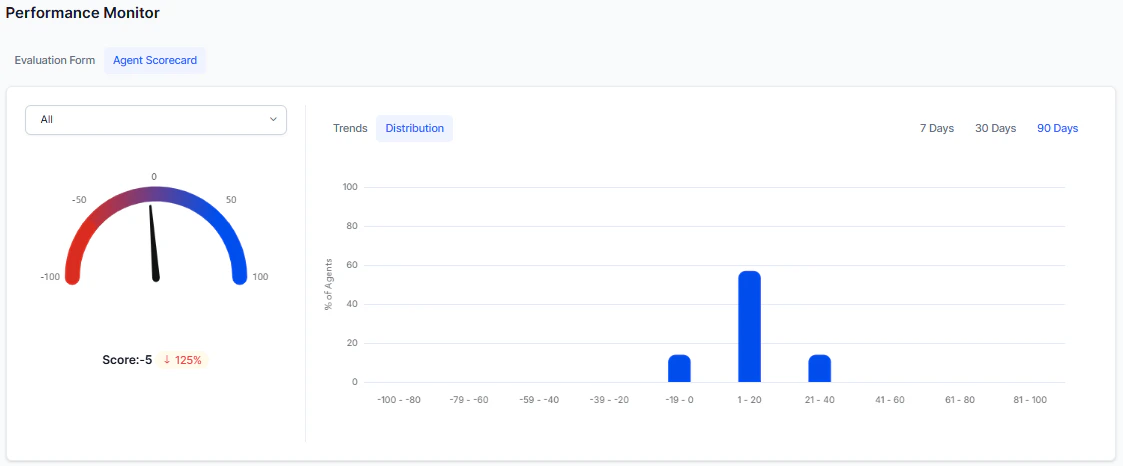
Displays agent performance based on selected filters using scorecard evaluation data.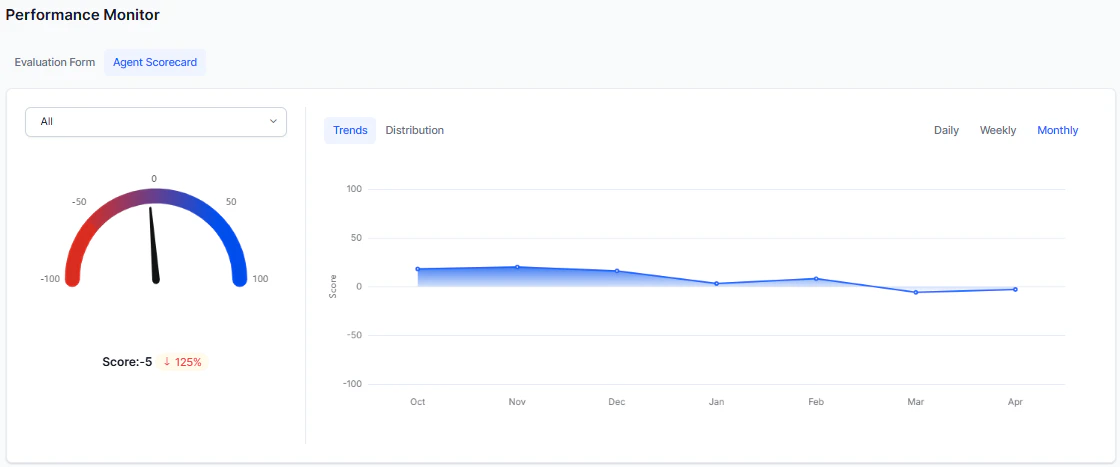
| View | Description |
|---|---|
| Trends | Shows trends in the percentage of failed interactions. |
| Distribution | Agent distribution across score bands (for example, 0–10, 11–20). |
Agent Leaderboard
A centralized view for identifying top and bottom performers. This widget works independently of language selection and channel filters.Leaderboard Columns
| Column | Description |
|---|---|
| Agents | Agent group name and assigned queue. |
| Audit Completed | Total manual audits completed by each agent. |
| Audit Score | Average score of manual audits. |
| Kore Evaluation Score | Average Auto QA score per audited interaction. |
| Fail Percentage | Failure percentage across all interactions. |
Actions
View Leaderboard
The View Leaderboard option helps supervisors, auditors, and managers view top-and bottom-performing agents along with their conversations.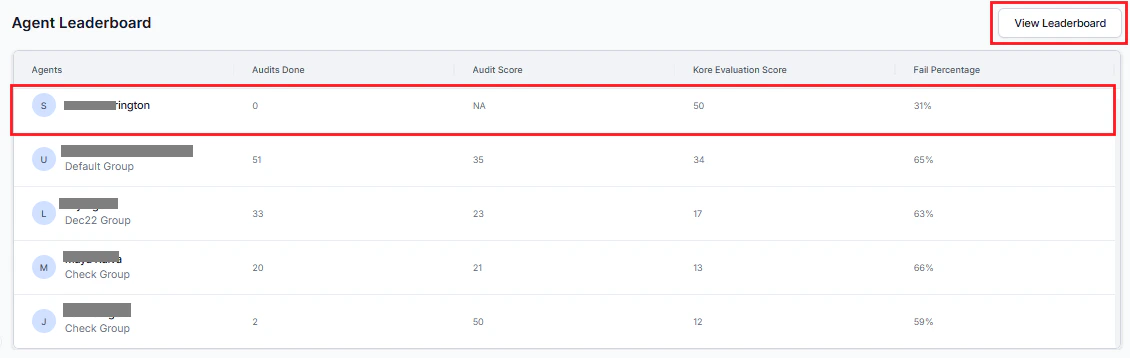
Access Agent Leaderboard
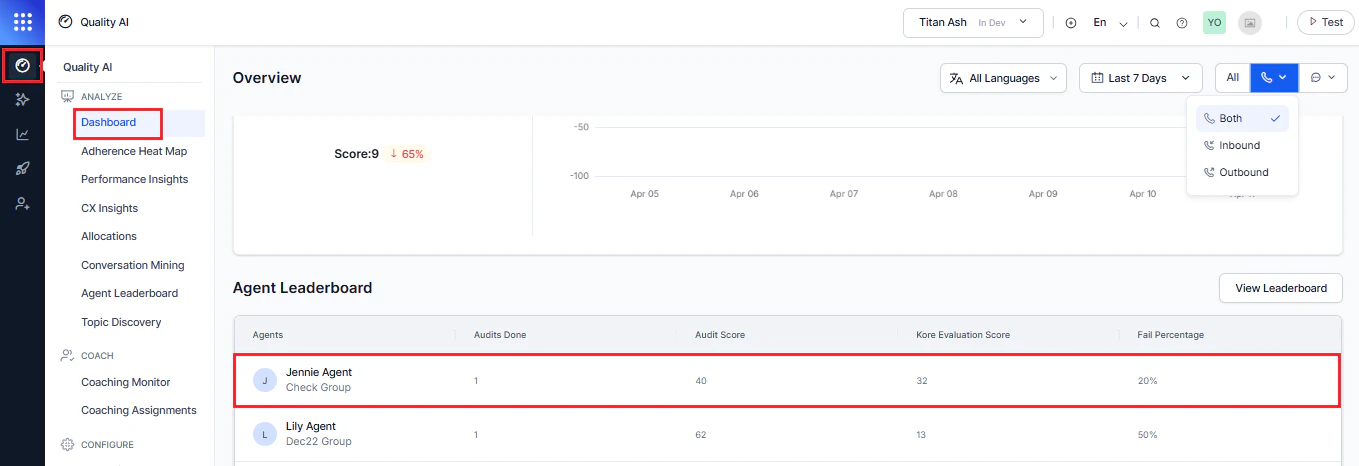
You can access the full leaderboard from two places:-
Navigate to Quality AI > Dashboard > Agent Leaderboard.
-
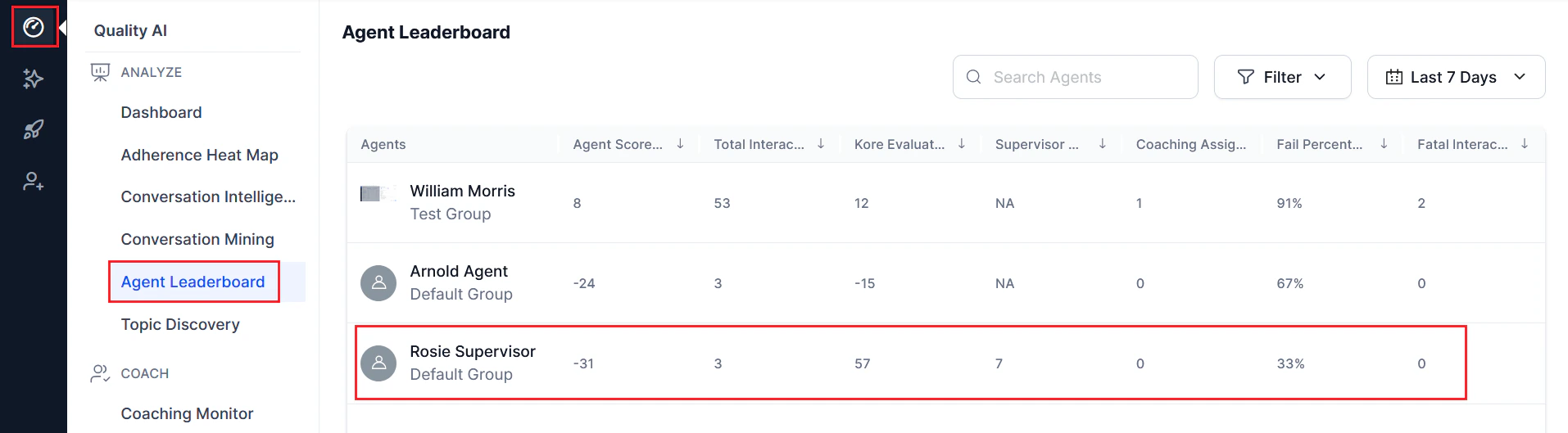
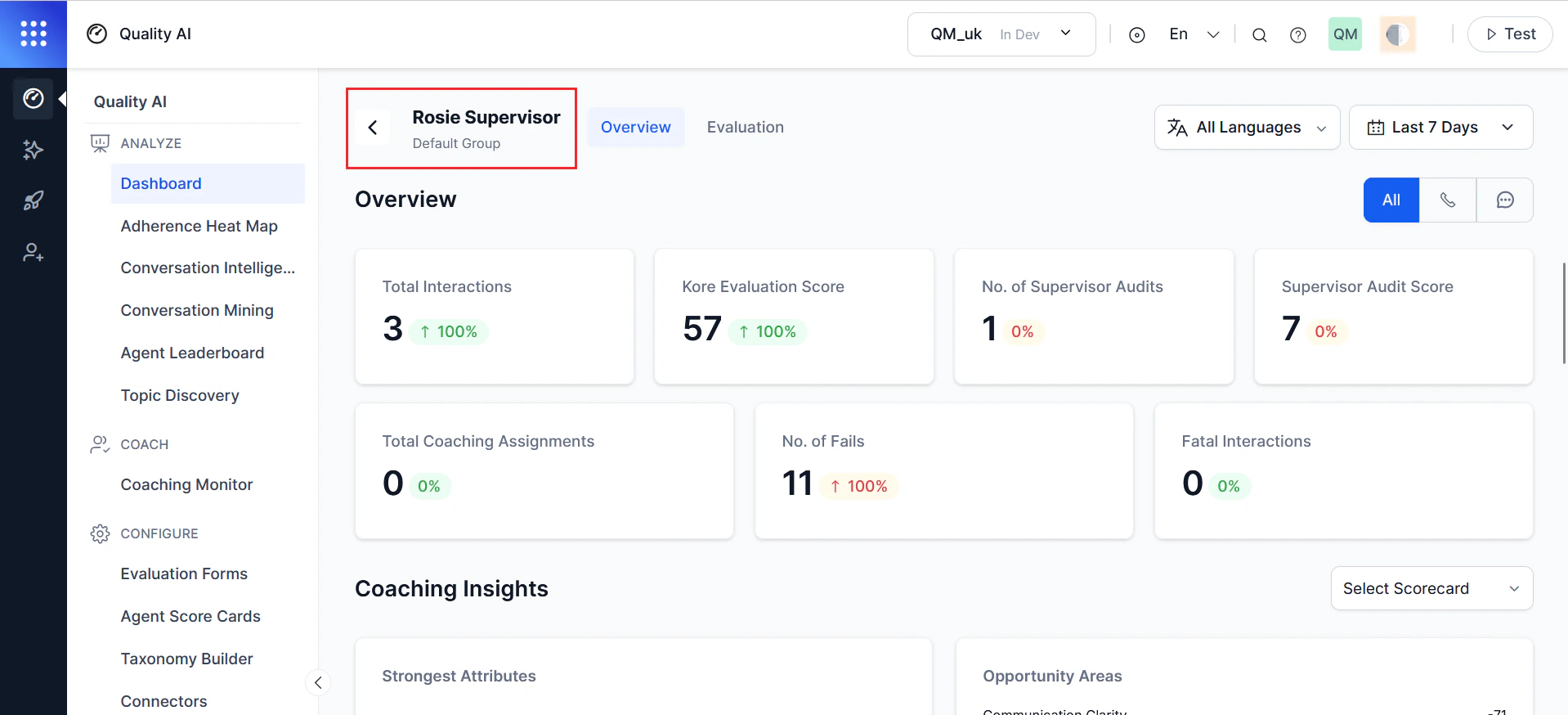
Navigate to Quality AI > Agent Leaderboard.
Supervisor Insights and Coaching Support
Supervisors gain insights into agent performance, language-specific interactions, and coaching support through bookmarked evaluations and scorecard-based access.- If no scorecards are assigned to an agent, supervisors can’t view the agent’s scorecard details.
- Supervisors review language-specific interactions and evaluation details to support targeted coaching
- Bookmarked interactions help assign coaching tasks, with the most recent interactions displayed first.