

The Agent Leaderboard provides a consolidated view of agent performance across queues, channels, languages, and contact directions using Auto QA and manual audit data. It helps identify top and bottom performers, compare inbound and outbound performance, track failures and coaching needs, and analyze results by language and scorecard. Users with Cross Queue Data Access can view performance across all queues; otherwise, the leaderboard is limited to assigned queues. By default, it displays data for the last 7 days across all languages, channels, and contact directions.Documentation Index
Fetch the complete documentation index at: https://koreai-v2-agent-platform-dev.mintlify.app/llms.txt
Use this file to discover all available pages before exploring further.
Access Agent Leaderboard
Navigate to Quality AI > Analyze > Agent Leaderboard.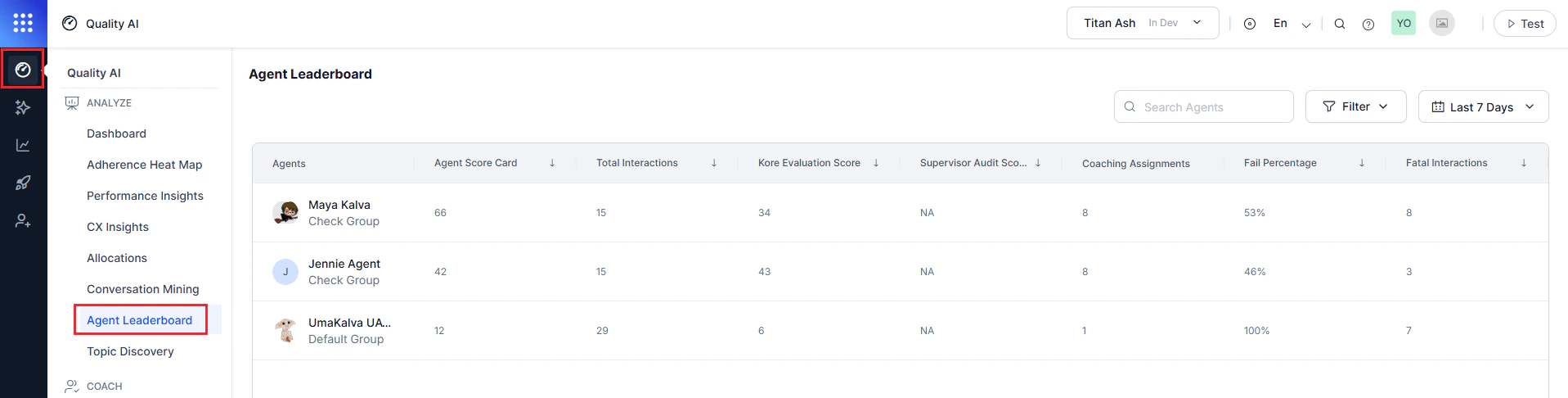
To view leaderboard data, enable Agent Scorecard and Agent Access to Scored Interactions in Quality AI General Settings.
Automated Scoring
- Enable the Agent Scorecard toggle to view automated scoring and leaderboard metrics.
- If a default scorecard is set, scores are based on that scorecard. Otherwise, the system shows the average across all applicable scorecards.
Leaderboard Metrics
The leaderboard aggregates agent performance based on selected metrics.| Column | Description |
|---|---|
| Agents | Agent name and their assigned queue. |
| Agent Score Card | Average score across selected scorecards. |
| Total Interactions | Total interactions handled in the selected period. |
| Kore Evaluation Score | Average Auto QA score across evaluated interactions. |
| Supervisor Audit Score | Average manual audit score for audited interactions in the selected period. |
| Coaching Assignments | Number of coaching sessions assigned to the agent. |
| Fail Percentage | Percentage of failed interactions. |
| Fatal Interactions | Count of interactions with fatal failures. |
Agent Leaderboard Filters
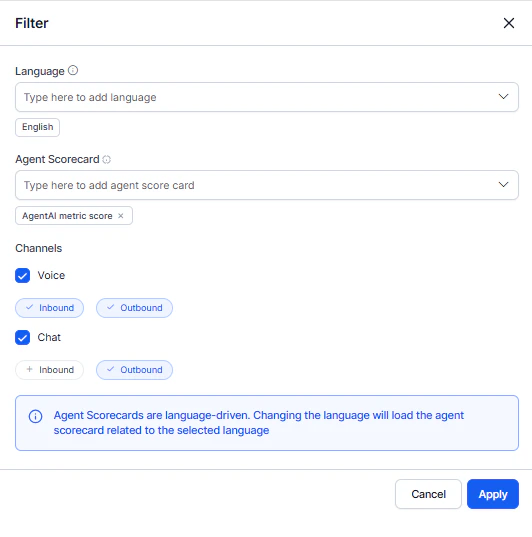
The Agent Leaderboard uses common Quality AI controls to filter, sort, and search performance data. Scorecards are language-driven and load based on the selected language, allowing multiple scorecards per agent.Filters and Controls
| Filter | Description |
|---|---|
| Date Range | View performance over a selected time period. Defaults to the last 7 days. |
| Agent Search | Select a scorecard based on the chosen language. Only relevant scorecards are displayed. |
| Language | Filter data by selecting one or more languages (for example, English). Agent scorecards are language-driven and update based on selected languages. |
| Agent Scorecard | Select a scorecard based on the chosen language. Only relevant scorecards are displayed. |
| Channels | Filter by Voice or Chat. |
| Contact Direction | Filter by additional selection for Inbound, Outbound, or Both interactions. |
Contact Direction Behavior
The leaderboard supports direction-aware performance analysis.| Selection | Behavior |
|---|---|
| Voice + Inbound | Incoming calls only |
| Voice + Outbound | Outbound calls only |
| Chat + Inbound | Customer-initiated chats |
| Chat + Outbound | Agent/system-initiated chats |
| All + Both | Combined performance |
Scorecard Behavior (Enablement and Language-Driven)
- Enable Agent Scorecard in Quality AI General Settings to activate automated scoring and leaderboards; if disabled, no interactions or metrics display.
- Scorecards load based on the language and scorecard selected.
- Agent scores are calculated from selected scorecards. If a default scorecard is set, its score is shown; otherwise, the system displays the average across applicable scorecards.
- Changing the language reloads the associated scorecards.
- Only scorecards configured for the selected languages are displayed in the list.
- Leaderboard reflects only interactions matching selected filters (language, channel, and direction applied together).
- Fatal interactions impact scores based on evaluation form configuration.
- The supervisor can apply multiple scorecards for an agent.
View Agent Insights
The Agent Insights view provides a detailed, agent-specific dashboard for performance analysis and coaching. It includes an overview of key metrics and in-depth supervisor evaluation data. To view an agent’s performance:- Select an agent from the Agent Leaderboard to open the Agent Dashboard.
- Use the Overview tab to review performance metrics in the Agent-Specific Dashboard.
- Navigate to the Evaluation tab to view detailed supervisor evaluation insights.
Agent Dashboard – Overview (Supervisor View)
Access this view by selecting an agent from Dashboard > Agent Leaderboard. This dashboard provides a comprehensive view of individual agent performance, including:- Interaction volume and evaluation scores
- Coaching insights (strengths and improvement areas)
- Sentiment and resolution trends
- Scorecard-based performance tracking
Agent Dashboard – Evaluation
Access this view by selecting an agent from Dashboard > Agent Leaderboard and navigating to the Evaluation tab. This section provides interaction-level analysis for the selected agent, including:- Performance trends
- Sentiment and resolution insights
- Coaching assignments
- Auto QA and manual audit score reviews
- Filters for language, channel, and contact direction
- Identification of recurring issues
- Interaction bookmarking for coaching
- Creation of targeted coaching assignments
Coaching Insights (Overview Tab)
The Coaching Insights section highlights performance strengths and coaching opportunities:- Agent Attribute view (attribute-level performance)
- Evaluation Metric view (metric-level performance)
- Scorecard-based filtering
- Identification of top strengths and areas for improvement
- Access metric-level data from attributes